

Spaces look simple, but they can cause many problems in web design. When you build a web page, you may notice that text does not always behave the way you expect. Words can break into new lines. Extra spaces may disappear. Sometimes, content looks different across browsers or devices. These small issues can hurt both design and readability.
HTML handles spaces in a special way. It does not treat every space you type as important. In most cases, it will ignore extra spaces and only show one. This can be frustrating when you want full control over layout and text formatting. That is where HTML character entities come into play.
One of the most useful entities is the non-breaking space, often written as . It helps you control spacing in a precise way. It also keeps words or elements together on the same line. This is very helpful in many real-world cases like pricing, dates, and names.
In this guide, you will learn how HTML entities work. You will understand what means and how to use it correctly. You will also see when to use it instead of a regular space. By the end, you will have a clear idea of how to manage spaces in HTML without breaking your layout.
What are HTML entities?
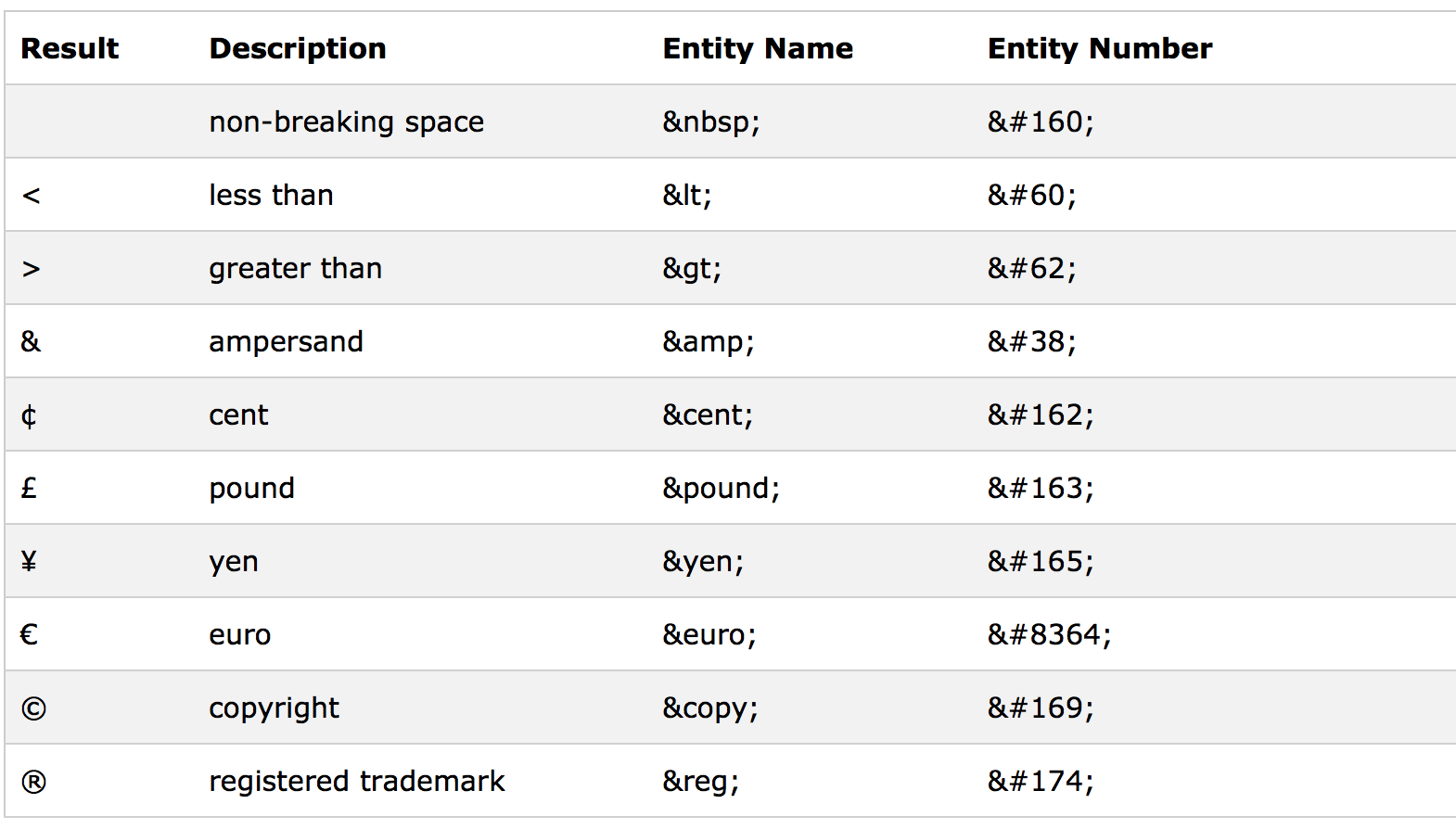
HTML entities are special codes used to display reserved or invisible characters in web pages. These characters either have a special meaning in HTML or cannot be typed easily from a keyboard.
For example, symbols like < and > are part of HTML syntax. If you type them directly, the browser may think you are writing a tag. To avoid this confusion, HTML uses entities. Instead of writing <, you write <. The browser then shows it as a normal symbol.
Entities always start with an ampersand (&) and end with a semicolon (;). Between them, you place a name or a number. For example:
<shows<>shows>&shows& creates a non-breaking space
There are two main types of HTML entities:
1. Named entities
These use a readable name. For example, or ©. They are easier to remember and use.
2. Numeric entities
These use a number code. For example,   is the numeric version of . Both work the same way.
Entities are important because they help you display content exactly as you want. Without them, your text may break or show errors. They also help keep your code safe and clean.
In simple terms, HTML entities give you control. They let you show characters that HTML would normally hide or misread.
What exactly is nbsp?
The term stands for “non-breaking space.” It is a special HTML entity that creates a space which the browser will not break into a new line.
A normal space behaves differently. If a line becomes too long, the browser will move part of the text to the next line. This is called line wrapping. While this is useful, it can sometimes break content in a way you do not want.
The non-breaking space solves this problem. It tells the browser to keep the connected text together on the same line. This is very helpful in many situations.
Here are a few examples where is useful:
- Keeping numbers and units together:
10 kg - Keeping names together:
John Doe - Keeping currency values intact:
$50 USD
In these cases, the browser will not split the text into two lines. Everything stays together, which improves readability.
Another key feature of is spacing control. In HTML, multiple regular spaces are collapsed into one. This means if you press the space bar five times, the browser will still show only one space.
But with , each one counts as a real space. So if you write:
The browser will show three spaces between the words.
This makes very useful for adding extra spacing when needed. However, it should be used carefully. Too many non-breaking spaces can make your code messy and harder to maintain.
In short, is a powerful tool. It helps control layout, spacing, and text flow in a simple way.
When should I use   instead of a regular space?
Using is helpful, but it should not replace every normal space. You should use it only when you need more control over how text behaves.
Here are the most common situations where works best:
1. Preventing line breaks
Use when you want to keep words or values together. This is very useful in:
- Dates:
April 5 - Names:
Dr. Smith - Measurements:
20 km
Without , the browser may split the text into two lines. This can make the content look odd or hard to read.
2. Keeping symbols attached to values
Symbols like currency or units should stay close to the number. For example:
$100should not break into$and10050%should stay together
You can write:
or
This keeps the value clean and readable.
3. Adding multiple spaces
HTML ignores extra spaces. If you need more than one space, you can use .
Example:
This creates a visible gap between the words.
However, this method should be used carefully. For layout design, CSS is usually a better choice.
4. Aligning small text elements
Sometimes you need quick alignment without using CSS. In such cases, can help.
For example, adding small spacing between buttons or labels can be done with non-breaking spaces. But this is more of a quick fix than a long-term solution.
5. Email HTML formatting
HTML emails often have limited CSS support. Because of this, becomes very useful. It helps control spacing where CSS may fail.
You can use it to:
- Add space between words
- Keep text on one line
- Improve layout in email clients
When not to rely on it too much
Even though is helpful, it should not replace proper styling. If you use it too often, your code can become hard to read and manage.
For example, using many entities for layout spacing is not a good idea. CSS properties like margin and padding are better for that.
Simple rule to follow
Use only when:
- You want to prevent line breaks
- You need exact spacing in text
- CSS is not available or limited
Avoid it when:
- You are designing layouts
- You need flexible spacing across devices
By following this rule, you can keep your code clean and effective.
How to use nbsp
Using is simple, but using it the right way takes some care. This HTML entity helps you control spacing and prevent unwanted line breaks. When used correctly, it improves readability and keeps your layout clean.
Basic usage in HTML
The most direct way to use a non-breaking space is by typing in your HTML code. Each time you use it, the browser creates one fixed space.
Example:
This ensures that “Hello” and “World” stay on the same line. The browser will not split them, even if the screen size becomes smaller.
You can also use multiple entities together:
This creates three visible spaces between the words. Unlike regular spaces, these will not collapse into one.
Using nbsp between text elements
You can place anywhere inside text content. It works well in:
- Numbers and units →
25 kg - Dates →
June 12 - Titles →
Mr. Rahman - Prices →
$100 USD
In each case, the goal is the same. You want to keep related items together on one line.
Using nbsp inside inline elements
also works inside inline HTML tags like <span>, <strong>, or <a>.
Example:
This keeps both words inside the bold text without breaking them apart.
You can also use it inside links:
This ensures the link text stays clean and readable.
Combining nbsp with punctuation
Sometimes, you may want to control space around punctuation marks. For example:
This adds a fixed space after the comma. It helps keep spacing consistent across different browsers.
nbsp in WordPress
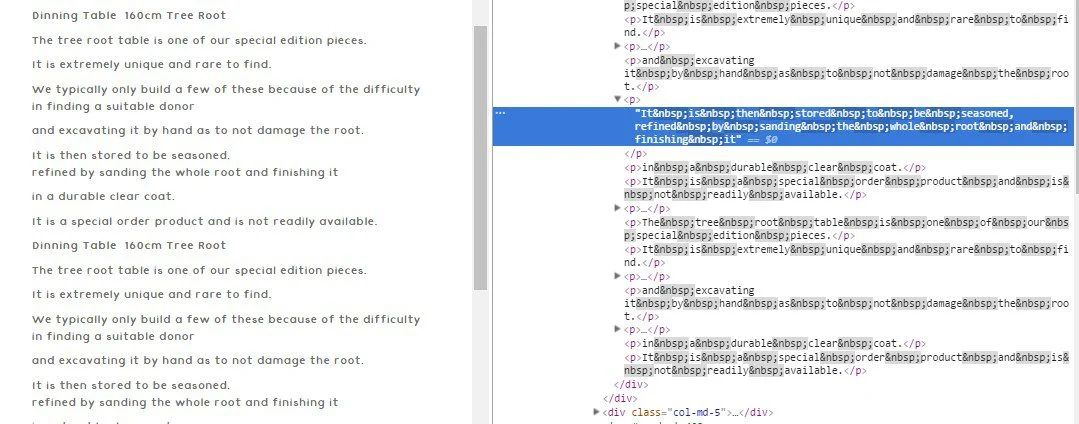
Using in WordPress is very common, especially when working with content editors. However, the method depends on the editor you use.
Using nbsp in the block editor (Gutenberg)
In the block editor, you can add directly inside a paragraph block. Just switch to the code view or HTML mode.
Steps:
- Select your text block
- Click on the three-dot menu
- Choose “Edit as HTML”
- Add
where needed
Example:
Once you switch back to visual view, the spacing will appear correctly.
Using nbsp in the classic editor
If you are using the classic editor, the process is similar. You need to switch from the visual tab to the text tab.
Steps:
- Open the “Text” tab
- Insert
in your content - Save or preview the page
This method gives you full control over spacing.
Adding nbsp without code
If you do not want to write HTML, you can still create a non-breaking space using your keyboard.
On many systems:
- Press
Alt + 0160(Windows) - Press
Option + Space(Mac)
This inserts a non-breaking space directly into the editor. It works like but does not show the code.
Using nbsp in page builders
Many WordPress page builders also support . You can add it inside text widgets or HTML blocks.
This is useful when:
- You want to control spacing in headings
- You need to fix layout issues
- You want to keep text elements together
Important tip for WordPress users
WordPress may sometimes remove extra spaces automatically. This happens because it tries to clean up code.
To avoid this:
- Use
instead of regular spaces - Avoid switching between visual and code views too often
- Preview your content before publishing
By following these steps, you can use in WordPress without losing your formatting.
What are the common pitfalls or mistakes when using nbsp?
While is helpful, many users make mistakes when using it. These mistakes can break layouts, reduce readability, and make code harder to manage.
1. Overusing nbsp for layout spacing
One of the biggest mistakes is using to control layout. Some people add many non-breaking spaces to push elements into position.
Example:
This may look fine at first, but it is not reliable. It will break on different screen sizes and devices.
A better solution is to use CSS properties like:
marginpaddingflexboxgrid
These tools are designed for layout control.
2. Creating long strings of non-breaking spaces
Adding too many entities in a row can make your code messy.
Example:
This is hard to read and maintain. It also increases the chance of layout issues.
Instead, use proper spacing with CSS.
3. Breaking responsive design
prevents line breaks. This can be a problem on small screens.
If you force too many elements to stay on one line, the content may overflow. Users may need to scroll sideways, which hurts user experience.
Always test your content on mobile devices before using heavily.
4. Using nbsp where regular space is enough
Many beginners use even when it is not needed. This adds extra code without any benefit.
Example:
In most cases, regular spaces work just fine. Only use when you need to prevent line breaks.
5. Ignoring accessibility
Screen readers may treat non-breaking spaces differently. If you overuse them, it can affect how content is read aloud.
This can make your content less accessible for users with disabilities.
Always aim for clean and simple code.
6. Mixing nbsp with CSS spacing
Sometimes people use both and CSS for spacing. This can create confusion and inconsistent results.
Example:
- Using
for spacing inside text - Using CSS margins for layout
It is better to keep responsibilities clear:
- Use
for text behavior - Use CSS for layout and design
When not to use nbsp?
Knowing when not to use is just as important as knowing when to use it. In many cases, other tools provide better and cleaner solutions.
1. Avoid nbsp for layout design
Do not use to align elements or create structure. It is not meant for layout.
Instead, use CSS:
marginfor outer spacingpaddingfor inner spacingdisplay: flexfor alignmentgridfor complex layouts
These methods are flexible and work across all devices.
2. Avoid nbsp in large content blocks
Using inside long paragraphs can reduce readability. It may also create uneven spacing.
Keep your text natural. Let the browser handle line breaks unless you have a strong reason to control them.
3. Avoid nbsp for vertical spacing
Some users try to add vertical space using and line breaks.
Example:
<br>
This is not a good practice. Use CSS instead:
This keeps your code clean and easy to manage.
4. Avoid nbsp in responsive layouts
Responsive design needs flexibility. removes that flexibility by forcing content to stay on one line.
This can cause:
- Text overflow
- Broken layouts
- Poor mobile experience
Always test your design on different screen sizes.
5. Avoid nbsp when CSS can do better
Modern CSS gives you many tools for spacing and alignment. These tools are more powerful and easier to maintain.
Use CSS when you need:
- Consistent spacing
- Responsive design
- Clean code structure
Use only when CSS cannot solve the problem.
Simple takeaway
is a helpful tool, but it should be used with care. It works best for small text fixes, not for full design control.
Use it to keep words together or add small spacing. Avoid using it for layout or large formatting tasks. This way, your code stays clean, flexible, and easy to manage.
How to create spaces in HTML emails
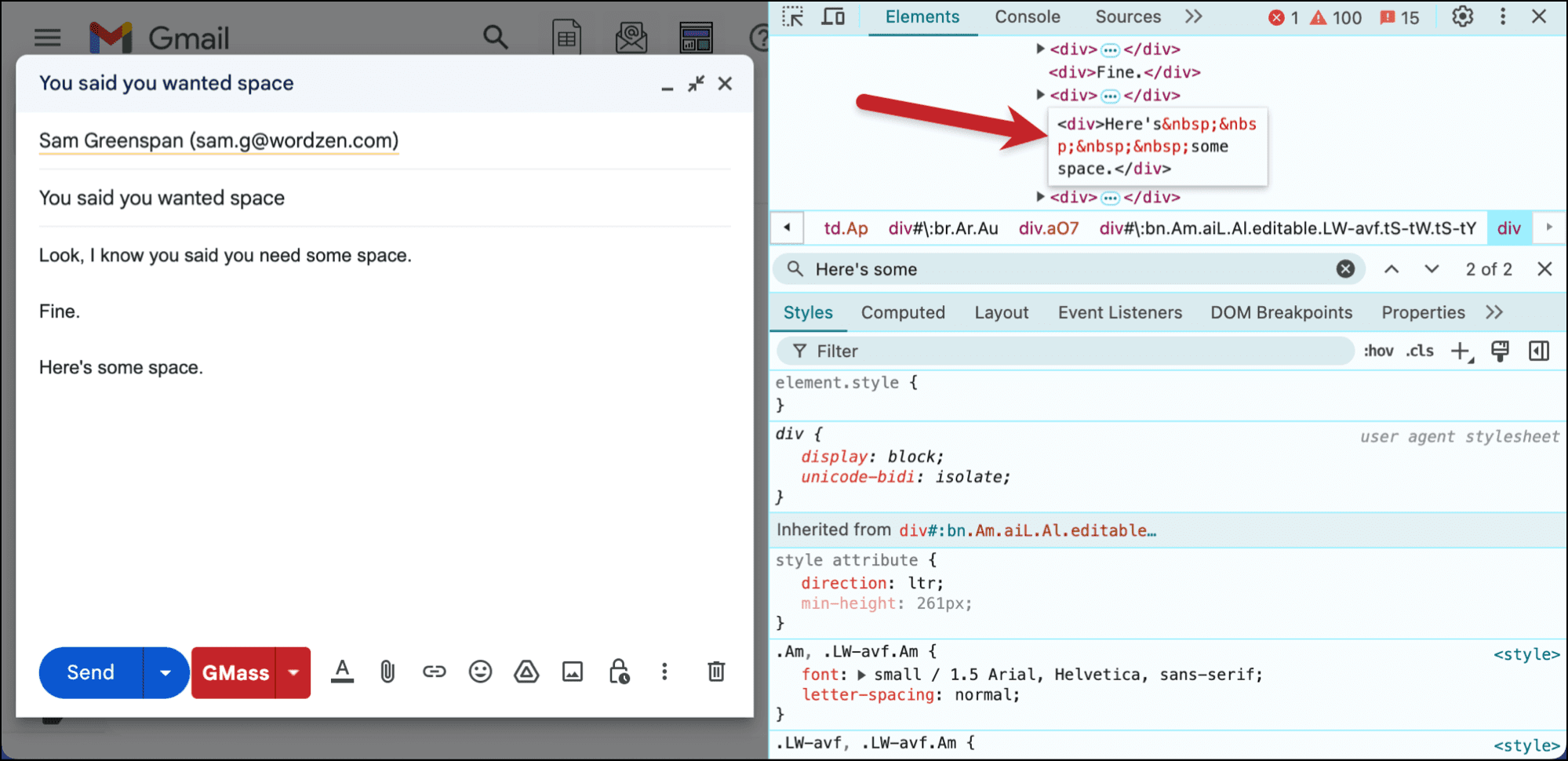
Spacing in HTML emails works very differently from normal web pages. Many email clients have limited support for modern CSS. Some styles may not work at all. Because of this, you need to use simple and reliable methods to control spacing.
Email design often depends on tables. These tables help structure content and create consistent layouts across different inboxes. Along with tables, you can use a few key techniques to add space where needed.
Below are the most common and effective methods.
Cellpadding
cellpadding is one of the oldest and most reliable ways to create space inside table cells. It adds space between the cell border and the content inside it.
Example:
<tr>
<td>This text has space around it</td>
</tr>
</table>
In this example, the text will have 10 pixels of space on all sides. This makes the content easier to read.
Why use cellpadding in emails?
- Works in almost all email clients
- Simple to apply
- Great for consistent spacing
However, it applies the same spacing to all sides. If you need more control, you may need another method.
Padding
Padding works like cellpadding, but it is applied using CSS. It gives you more control because you can set different values for each side.
Example:
This text has custom spacing
</td>
Here, the top and bottom have 10px spacing, while left and right have 15px.
Why padding is useful:
- More flexible than
cellpadding - Lets you control each side
- Works well in modern email clients
But keep in mind:
- Some older email clients may ignore certain CSS styles
- Inline CSS (inside the
styleattribute) works best
Always use inline styles for better compatibility.
Empty cells
Empty table cells are another simple way to create space in email layouts. You can add a blank <td> to act as a spacer.
Example:
<td>Content</td>
<td width=“20”></td>
<td>More content</td>
</tr>
The empty cell with a width of 20 pixels creates a gap between two content areas.
You can also use height for vertical spacing:
<td height=“20”></td>
</tr>
Why empty cells work well:
- Very reliable across email clients
- Easy to control exact spacing
- No need for complex CSS
This method is widely used in email templates because of its simplicity.
Margin
Margins are commonly used in web design, but they are not always reliable in email design. Some email clients ignore margins, especially on certain elements.
Example:
This paragraph has vertical spacing
</p>
While this may work in some clients, it may fail in others.
Best practice for margins in emails:
- Use margins carefully
- Test across multiple email clients
- Avoid relying on margins for critical layout spacing
If spacing is important, it is safer to use padding or table-based methods.
Break
Line breaks are a quick way to add vertical space. You can use the <br> tag to move content to the next line.
Example:
This creates a visible gap between the two words.
However, <br> has limitations:
- It only adds vertical space
- It is not precise
- Too many breaks can make code messy
For better control, combine <br> with other methods like padding or empty rows.
Combining methods for better results
In most cases, you will need to combine these techniques. For example:
- Use
cellpaddingfor overall spacing - Use padding for fine control
- Use empty cells for layout gaps
This layered approach ensures your email looks good in different inboxes.
Testing your HTML email
Testing is a critical step in email design. Unlike websites, emails do not render the same way everywhere. Each email client has its own rules.
A design that looks perfect in one inbox may break in another. That is why testing is not optional.
Why testing matters
Different email clients handle HTML and CSS differently. For example:
- Some ignore certain CSS properties
- Some add their own styles
- Some change font sizes or spacing
Without testing, you may send emails with broken layouts or poor readability.
Key areas to test
When testing your HTML email, focus on these areas:
1. Spacing and layout
Check if your spacing methods work as expected. Look for:
- Collapsed spaces
- Misaligned elements
- Extra gaps
2. Line breaks
Make sure text does not break in the wrong place. Check how behaves.
3. Mobile responsiveness
Open your email on different screen sizes. Ensure:
- Text fits properly
- No horizontal scrolling
- Buttons are easy to click
4. Font and readability
Check if fonts display correctly. Make sure text is easy to read.
How to test your email
There are several ways to test HTML emails:
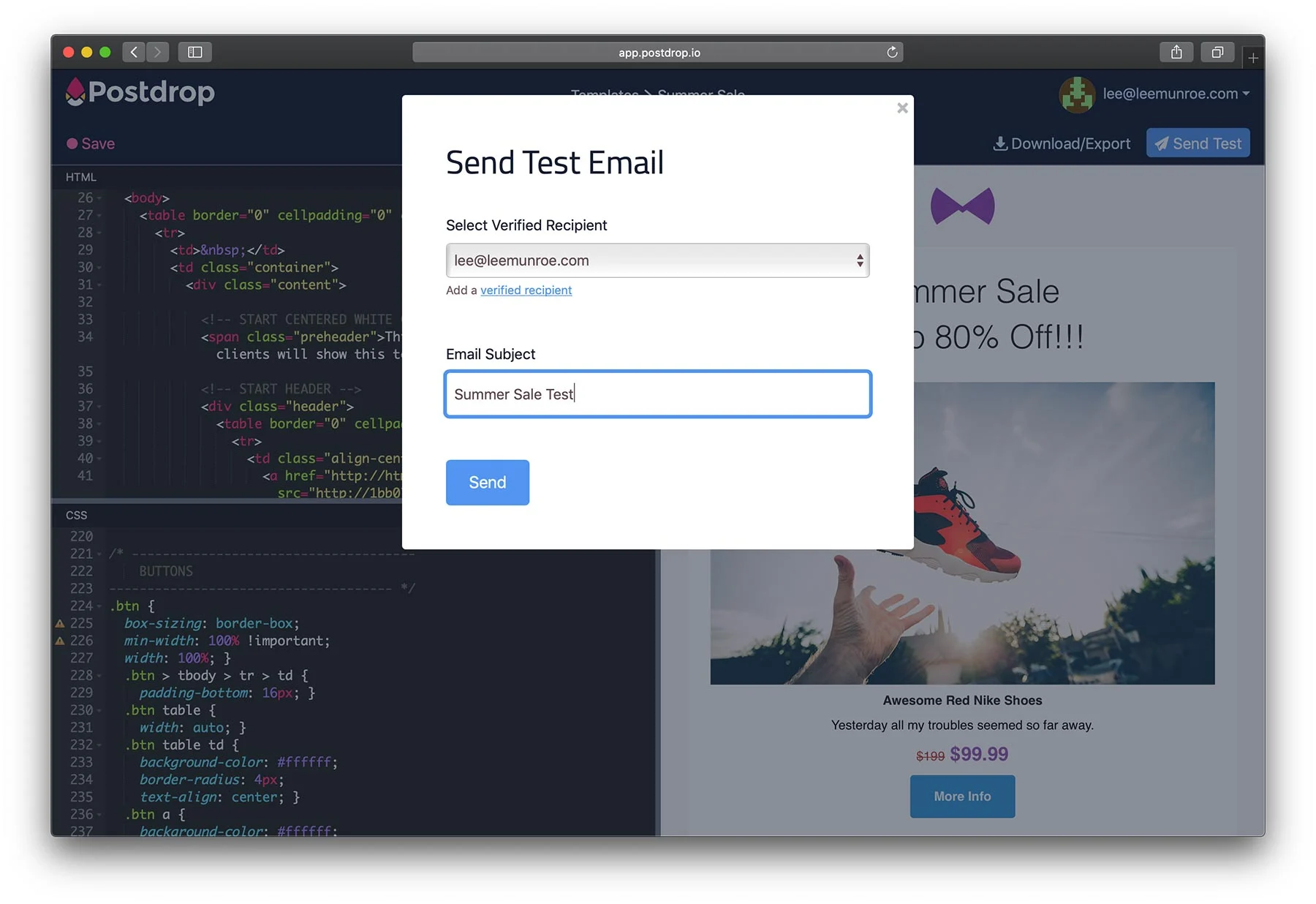
Send test emails
Send your email to different accounts like Gmail, Outlook, and Yahoo. Open them on both desktop and mobile.
Use preview tools
Email testing tools let you preview your design across many clients. They show how your email will look in different environments.
Check manually
Open your email in real devices. This helps you see real-world results.
Common testing mistakes
Avoid these common errors:
- Testing in only one email client
- Ignoring mobile devices
- Skipping small spacing issues
- Not checking dark mode
Even small spacing problems can affect user experience.
Tips for better results
- Keep your design simple
- Use table-based layouts
- Stick to supported HTML and CSS
- Test before every campaign
By following these steps, you can ensure your email looks clean and professional.
Wrapping up
Spacing in HTML can be tricky, especially in email design. Browsers and email clients treat spaces differently. That is why you need the right tools and methods.
HTML entities like help control text spacing and prevent unwanted line breaks. They are useful for keeping words and values together. However, they should be used carefully and only when needed.
For HTML emails, spacing requires a different approach. Methods like cellpadding, padding, and empty cells provide better control. These techniques work across most email clients and help maintain a consistent layout.
At the same time, not all methods are reliable. Margins and line breaks may not behave the same everywhere. That is why testing becomes very important. It helps you catch issues early and fix them before sending your email.
The key is to keep your code simple and clean. Use the right method for the right task. Avoid overusing shortcuts like multiple non-breaking spaces. Instead, rely on proven techniques that work across devices.
When you follow these practices, your emails will look better and perform well. Clean spacing improves readability and creates a better experience for your audience.
Read More: 8 Best Responsive HTML Email Builders for Your Next Campaign