
When you send an email, you usually choose between two main formats: HTML email and Plain Text email. This choice matters — especially if you want to use things like animated GIFs in your email signature.
Plain Text emails are simple. They only include basic text and no fonts, no images, and no animated content. These emails are small, quick to load, and almost every device can read them. But because they don’t support formatting or images, you can’t show animated GIFs in a plain‑text signature.
On the other hand, HTML emails let you use colors, images, links, font styles, and animations like GIFs. When you choose HTML, you can design a richer signature that looks professional, creative, and eye‑catching. Most modern email marketing campaigns use HTML because it helps draw attention, conveys branding, and allows dynamic visuals like logos or animated banners in signatures.
So, which should you choose?
- If your audience is mostly reading emails on simple or old devices, or your focus is clear, text‑only communication, Plain Text might be better.
- But if you want to make an impression, include branded signature details, and support images and GIFs, HTML is the clear choice.
For adding animated GIFs to your signature — which is the focus of this post — HTML is required. GIFs can only appear and animate in an HTML email; they won’t work in a plain‑text format.
Animated GIFs in email signatures are a dynamic way to make your emails stand out. Instead of a static block of text or a still logo, a GIF adds subtle motion or animation. This captures attention quickly and can make your email feel modern and engaging.
Animated signatures are especially popular in email marketing, promotional campaigns, and personal branding. They can show a small looped animation of your logo, a call‑to‑action button, or a moving graphic that supports your brand message.
Most major email services like Gmail, Apple Mail, and modern Outlook versions support animated GIFs. But not all email apps handle animation the same way, and some older systems will only show a still image instead of the animation.
Before you add a GIF to your signature, you need to choose the right email format (HTML), prepare a suitable animated GIF file, and understand how different email systems will display that GIF. In the sections below, you’ll find complete, practical steps for adding GIFs in Gmail and Outlook, plus a clear explanation of email client support.
How to insert a GIF into your email signature?
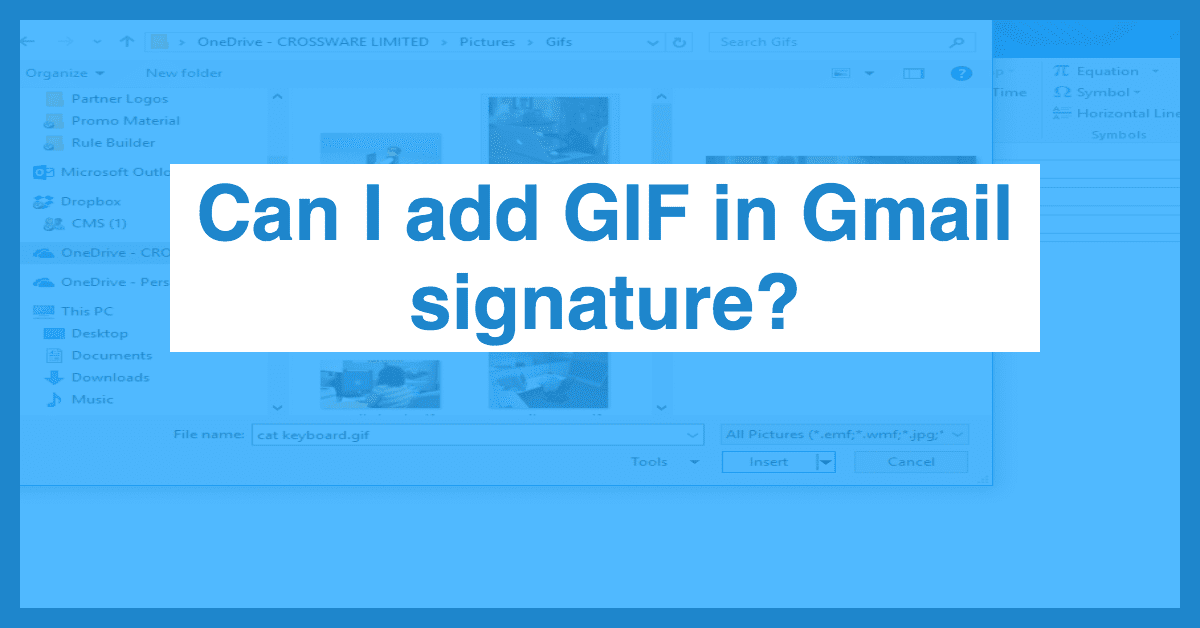
Adding an animated GIF to your email signature varies slightly depending on your email provider, but the general idea is the same: you edit your signature settings, insert the GIF file, and save changes. Below are step‑by‑step instructions for two popular email services — Gmail and Outlook.
How to add an animated signature in Gmail?
- Open Gmail Settings. Log in to your Gmail account. Click the gear icon in the top right of the Gmail window, then choose “See all settings.”
- Navigate to Signature. Scroll down in the settings until you find the Signature section.
- Create or Edit a Signature. If you don’t have a signature yet, click Create new. If you do, click on your existing signature to edit it.
- Insert Your Animated GIF. Inside the signature editor, click the image icon. You can either upload your GIF directly from your computer or insert it via a link if it is hosted online.
- Position and Adjust. Place the GIF where you want it within your signature. You can add text before or after to include your name, title, or contact details.
- Save Changes. Scroll down and click Save Changes at the bottom.
- Test Your Signature. Send a test email to yourself to confirm the GIF appears correctly and animates if possible on the devices you use.
How to add an animated signature for Outlook
- Open Outlook. Whether you’re using Outlook on Windows or Outlook on the web, start by signing in.
- Open Signature Settings. Click the gear icon (⚙️) in the top right, then type “signature” in the search box to find the Email signature setting.
- Create/Edit Signature. Choose a signature to edit or click New.
- Insert the GIF. In the signature editor, click the image icon to upload the animated GIF file from your computer.
- Resize/Position GIF. If necessary, adjust the GIF size by dragging the corners or moving it within the signature layout.
- Save Your Signature. Click OK or Save to store your changes.
- Test Your Email. Send an email with your new signature to yourself or to a colleague to ensure it displays and animates correctly across devices.
Important Note
- Always use an optimized GIF file — keep the file size small (ideally under 500 KB). Large GIFs can slow down email loading and might trigger spam filters.
- Test your animated signature in several different email clients before using it for business or marketing emails. Some email apps do not show the animation correctly.
- If a recipient’s email app doesn’t support animation, the first frame of your GIF should still look good as a fallback image.
Which email clients support animated GIFs?

Animated GIFs work differently across email clients (the apps people use to read emails). Some email apps fully support them, while others may only show a static image — often the first frame of the animation — instead of animating.
Email Clients That Usually Support Animated GIFs:
- Gmail (Web & Mobile) – Animated GIFs display correctly.
- Apple Mail (Mac & iOS) – Fully supports GIF animation.
- Outlook on the Web – Shows animation.
- Outlook for Mac & New Outlook – Can support animated GIFs.
- Yahoo Mail & Most Web Clients – Generally support animated GIFs.
- Mobile Apps (iOS & Android) – Most modern mail apps display animated GIFs.
However, email clients don’t always behave the same:
- Classic Outlook on Windows — Many older desktop versions (like Outlook 2007 through 2016) do not support animated GIFs. Instead, they show only the first frame of the image.
- Some mail clients may block images or animations by default for privacy or security reasons.
- Plain‑text or minimal email viewers will strip out image content entirely.
Because of these differences, animated GIFs are best used as a nice enhancement rather than a required element of your signature. For cases where animation isn’t supported, make sure the first frame of your GIF looks clean and professional.
What happens if a GIF is not supported?
When a recipient’s email client does not support animated GIFs, it usually falls back to showing a single frame of the animation — typically the first one — or no image at all. Here are the main possible outcomes:
- Still Frame Displayed. Most commonly, the animation won’t play, but the first frame of the GIF will show as a static image in the signature. This is normal in older desktop Outlook versions.
- Blank Space. Some minimal mail viewers may not display images at all, leaving empty space where the GIF should be.
- Email Blocking. In rare scenarios, an email security filter or strict corporate policy may block all images and animations, making the signature invisible or purely text‑based.
Because of these possibilities, don’t rely only on animation for conveying a message. Make sure the first frame of your GIF contains a useful visual or brand element that still communicates well on its own.
Why put an animated logo in your email signature?
Adding an animated logo to your email signature can bring life and personality to every message you send. A well-designed GIF can make your emails stand out in a crowded inbox and help your brand feel more modern, approachable, and memorable. However, there are important considerations to keep in mind to ensure it works effectively.
Make your contact info pop
An animated logo immediately draws attention to your email signature. Instead of a static block of text, the subtle motion of a GIF can guide the reader’s eye toward your contact information. For example, a small animation near your phone number, website, or social media links can make them more noticeable without being overwhelming.
The key is subtlety — simple movements or loops often work best. Overly flashy animations can distract the recipient or make your email feel unprofessional. Even small effects, like a blinking icon or a logo that gently slides into view, can make your signature feel interactive and polished.
A GIF can greatly increase the size of an email
One important factor to consider is file size. GIFs can be significantly larger than standard images, which may increase the overall size of your email. Large emails can take longer to load, especially on mobile devices or slower internet connections, and in some cases, they can even trigger spam filters.
To avoid this, optimize your GIF before adding it to your signature. Keep the file size under 500 KB if possible, reduce the number of frames, and limit the dimensions to a reasonable size. A small, looping animation is usually enough to create an impact without causing technical issues.
Some providers simply don’t support GIFs
Not all email clients or providers fully support animated GIFs. For example, older versions of Microsoft Outlook often display only the first frame of the GIF as a static image. In some cases, corporate or highly secure email systems may block all animations.
This means your carefully crafted animation might not always appear as intended. To address this, design the first frame of your GIF to be visually complete. This ensures that even when the animation doesn’t play, your logo still looks professional and communicates your brand.
Making a GIF that will resonate with your audience is tricky
Designing an effective animated GIF for your email signature isn’t just about adding motion — it’s about creating something meaningful for your audience. A GIF should enhance your brand’s message without overwhelming it.
The wrong animation can appear unprofessional, distracting, or even annoying. It’s important to match the style, pace, and tone of the GIF with your brand identity. Subtle, smooth movements are usually more effective than fast, flashing effects. Testing the GIF with a small audience before using it broadly can help ensure it resonates.
There’s much more poor quality content than there are good GIFs
Unfortunately, many GIFs available online are low-quality, overly large, or distracting. Using a generic GIF from the internet can harm your brand’s image rather than enhance it.
High-quality, custom-made GIFs that reflect your logo, brand colors, and style are far more effective. Investing in a professional design, even a simple loop, can make a huge difference in perception. Remember, your email signature is a direct representation of your brand — the GIF should reinforce professionalism, creativity, and clarity.
An animated logo can make your email signature more eye-catching, engaging, and memorable. But it requires careful planning: optimize the file size, design for fallback display, ensure it matches your brand, and focus on quality. A well-crafted GIF can subtly boost your email’s impact and make your messages stand out in crowded inboxes.
The do’s and don’ts of animated signatures
Using animated GIFs in email signatures can be powerful, but they need careful handling. Here’s a guide to make sure your animations enhance your emails without causing problems.
Do
- Keep it subtle – Small, smooth movements are more effective than flashy, fast animations. Your goal is to attract attention, not distract the reader.
- Optimize file size – Keep GIFs under 500 KB to avoid slowing down email load times or triggering spam filters.
- Test across devices – Send test emails to different clients (Gmail, Outlook, Apple Mail) and mobile devices to ensure the animation displays correctly.
- Focus on branding – Use animations that reflect your logo, colors, and overall brand identity. Even small animations should reinforce your professional image.
- Include fallback visuals – Design the first frame to look good on its own in case the animation isn’t supported. This ensures your signature always looks polished.
- Use motion sparingly – One GIF per signature is enough. Too many moving elements can appear chaotic or unprofessional.
Don’t
- Use large or complex GIFs – Avoid files that are too big or have too many frames, which can slow down email loading and annoy recipients.
- Overuse flashy animations – Rapid blinking, spinning logos, or multiple animations in one signature can feel spammy or distracting.
- Rely on GIFs for important messages – Don’t use animation to convey critical contact info or calls-to-action. Not all clients support animation.
- Use low-quality or generic GIFs – Avoid free, low-resolution GIFs from the internet. Poor quality reflects badly on your brand.
- Ignore accessibility – Make sure your GIF doesn’t interfere with readability. Avoid flashing effects that could trigger sensitivity issues in some recipients.
Following these do’s and don’ts helps create professional, effective, and visually appealing animated email signatures that enhance your emails rather than detract from them.
Examples of eye-catching email signatures
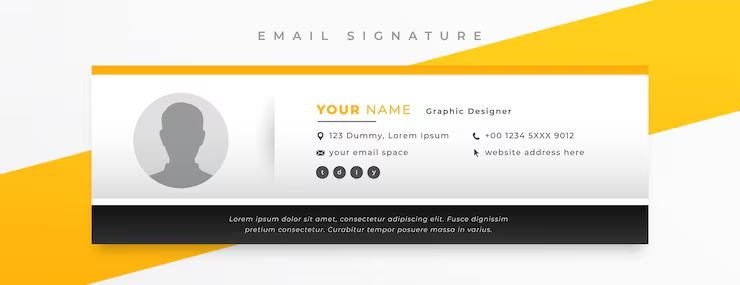
Eye-catching email signatures often combine clean design with subtle motion. Here are some practical ideas:
- Animated Logo Loop – A small GIF of your logo subtly rotating, bouncing, or fading in/out can make your brand recognizable without being distracting.
- Animated Call-to-Action (CTA) – A “Book a Meeting” or “Subscribe Now” button that gently pulses or changes color draws attention to important actions.
- Social Media Icons – Animated icons that move slightly when hovered or loop slowly can guide users to your social profiles while keeping the signature sleek.
- Text Highlights – Your name or job title could slide in or fade in, giving a modern feel without overpowering the email content.
- Branded Accents – Small animated elements, like a swoosh under a logo or a soft glow effect, add visual interest and reflect your brand’s personality.
The key is balance: the animation should enhance your signature, not dominate the email. Always test the GIF on multiple devices and email clients to ensure a consistent, professional experience.
Final Thoughts
Animated GIFs in email signatures are a simple but powerful way to make your emails stand out. They can enhance branding, highlight key information, and make your signature feel more dynamic. When done correctly, subtle animation grabs attention without overwhelming the recipient.
However, GIFs require careful planning. File size, email client support, quality, and brand consistency all matter. Optimized, professional GIFs that loop smoothly and include a strong first frame ensure your signature looks great for every recipient. Testing across devices and clients is essential to avoid unexpected issues.
By following best practices — keeping animations subtle, professional, and brand-focused — you can create email signatures that are both memorable and effective. A well-crafted animated signature can turn every email you send into an opportunity to reinforce your brand identity and engage your audience.
Read More: Best Email API Services 2026: 10 Best Free & Paid Email APIs Compared